

You have JioFiber at home. 300mbps speed. Netflix plays perfectly. YouTube never buffers. But the moment someone calls you on your Jio mobile number? Voice breaks. Call drops. The other person keeps saying “hello? sunai de raha hai?”
I’ve been there. Many of us have.
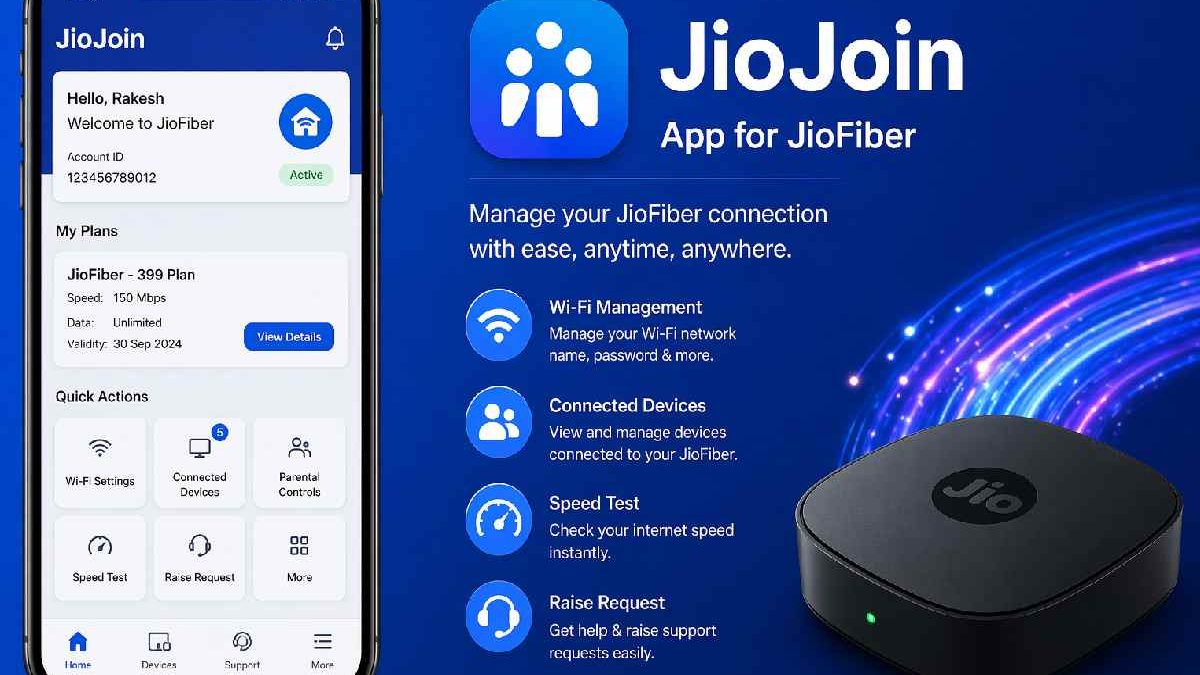
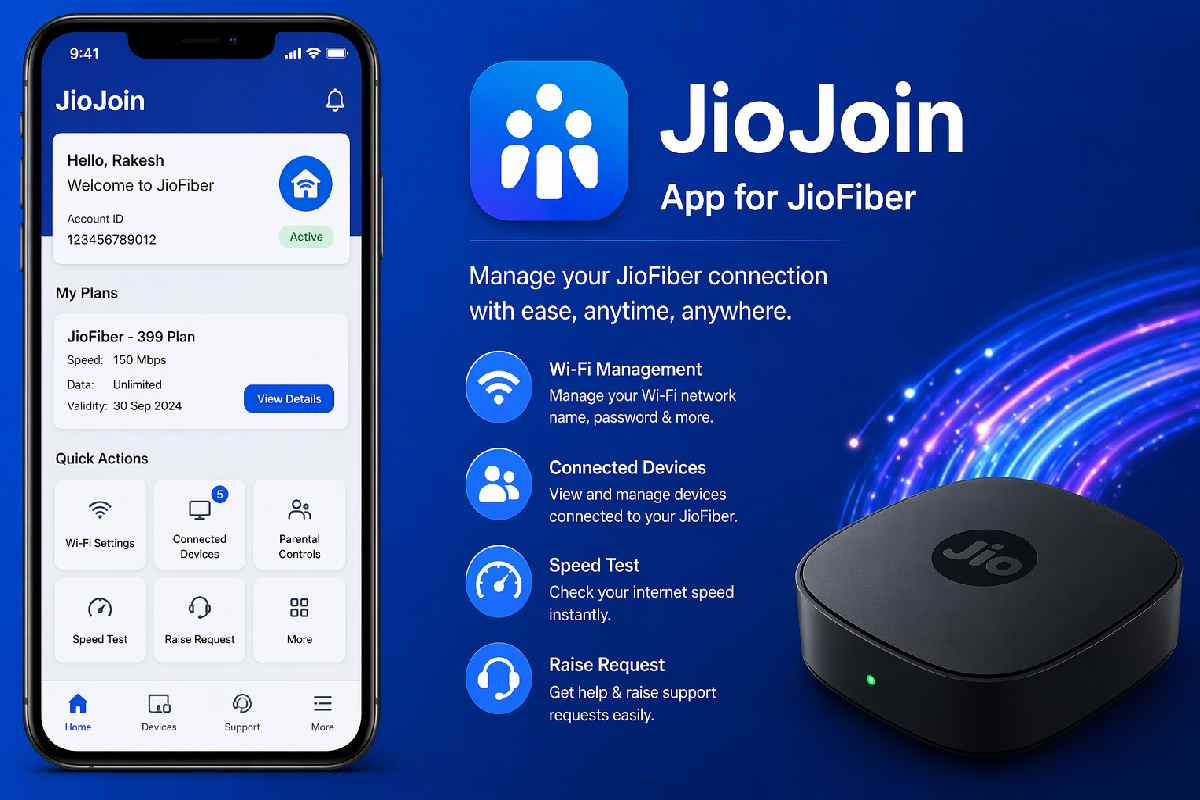
The fix is an app called JioJoin. Most JioFiber users don’t even know it exists. Let me change that for you.
Table of Contents
Key Takeaways
- JioJoin is Jio’s official app for calls over JioFiber Wi-Fi. Free to use.
- Setup takes two minutes. Download → OTP → done.
- Works when mobile signal is weak at home. Call quality improves significantly.
- Available on Android, iPhone, Windows, and Mac.
- Common issues are usually permissions or battery optimization. Easy to fix.
- No extra charges. Uses your regular plan minutes.
What exactly is JioJoin? (boring definition first, then real talk)
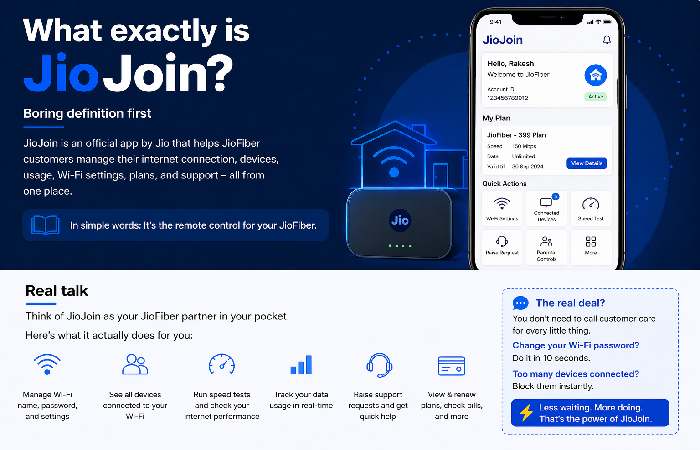
Officially: JioJoin is an application from Reliance Jio that enables voice calling over your JioFiber internet connection.
Real talk: It’s an app that tricks your phone into thinking your Wi-Fi is a mobile tower. When your actual Jio mobile signal is weak, the app takes over. Your calls travel through your fiber connection instead of the air.
The person you’re calling? They see your normal number. Nothing changes for them. They don’t need any app. It just works.
Who actually needs this?
Look, not everyone needs JioJoin. Let me be honest.
You should install this if:
- Your home has bad Jio signal. One bar. Two bars max. Many apartments in Mumbai, Bangalore, Delhi NCR have this problem. Concrete buildings kill mobile signal.
- You work from home. Dropped calls during client meetings look unprofessional. Your boss doesn’t care about “network issues”. They just want the call to work.
- Your phone’s battery dies fast. When signal is weak, your phone works harder to stay connected. Uses more battery. JioJoin uses Wi-Fi. Less battery drain.
- You have a second home or travel within India. Take your JioFiber router with you (yes, people do this). JioJoin works anywhere with internet.
You don’t need this if:
- Your Jio mobile signal is already strong at home. Three or four bars. Calls work fine. Don’t fix what isn’t broken.
- You don’t have JioFiber. The app literally does nothing without it. Won’t work on Airtel broadband. Won’t work on local ISPs. Won’t work on mobile hotspot.If you also use JioFiber at home, you may be interested in learning more about JioJoin calls over JioFiber and how Jio’s connected communication services work.
What do you need before starting?
Three things. That’s it.
One. Active JioFiber connection. Router should be on and working.
Two. Active Jio mobile number. Prepaid or postpaid. Doesn’t matter.
Three. A phone. Android 8 or newer. Or iPhone with iOS 13 or newer.
That’s all. No extra payment. No technician. No new SIM.
Let me show you the setup. It’s easy.
On Android phone (Samsung, OnePlus, Xiaomi, Realme, Vivo, Pixel)
Step one. Open Google Play Store. Search “JioJoin”. Look for the blue icon. Publisher name should be “Jio Digital Services”. Download it.
Step two. Open the app. It will ask for permissions. Phone, contacts, storage, overlay. Just allow all. I know it feels like too many permissions. But without these, the app won’t work properly. Trust me on this.
Step three. Type your 10-digit Jio mobile number. Tap “Get OTP”. You’ll get an SMS. Type the OTP in the app.
Step four. Here’s where people get stuck. The app will scan for your JioFiber router. Make sure your phone is connected to the same Wi-Fi network that comes from your JioFiber router. Not your neighbor’s Wi-Fi. Not your office Wi-Fi. The one from your Jio router.
Step five. Wait 10-15 seconds. The app shows “Connected”. You’ll see your contact list inside the app. Setup complete.
To make a call? Open JioJoin. Tap any contact. Tap the phone icon. Call goes through Wi-Fi.
To receive calls? Nothing changes. When someone calls your Jio number, the JioJoin app rings. Your normal phone dialer also rings. Answer from either.
On iPhone (iOS)
Same steps mostly. Download from App Store. Enter number. Verify OTP.
One iPhone-specific thing. When the app asks for “Local Network” permission, tap Allow. Without this, the app cannot find your JioFiber router. Many iPhone users miss this and then complain the app doesn’t work.
Another thing. Don’t force-close JioJoin from the app switcher. Keep it running in background. If you close it, incoming calls won’t ring.
On Windows PC or Mac (yes, this exists)
This is useful for work from home. You don’t need to pick up your phone during calls.
Go to jio.com. Search for “JioJoin desktop”. Download the version for your computer.
Install and open. A QR code appears on your screen.
Now open JioJoin on your phone. Tap the scanner icon (top right usually). Scan the QR code on your computer screen.
Phone and computer pair. Now you can make calls from your PC. Use your laptop microphone and headphones.
Common problems people face. And fixes.
Problem: App says “No JioFiber detected”
Your phone is on the wrong Wi-Fi network. Check once. Then check again. Your phone must be connected to the Wi-Fi from your JioFiber router. Not any other Wi-Fi.
Still not working? Your JioFiber router might have a setting called “Access Point Isolation” turned on. This setting prevents devices from seeing each other. Log into your router settings. Type 192.168.29.1 in your browser. Login password is usually “Jiocentrum” or whatever you set. Find Access Point Isolation. Turn it off.
Problem: Call connects but no sound
Permission issue. Go to phone settings. Apps. JioJoin. Permissions. Make sure Microphone is allowed. On Android, also check “Nearby devices” permission.
Problem: Incoming calls don’t ring on JioJoin
Your phone’s battery saver is killing the app in background. Go to settings. Battery. Battery optimization. Find JioJoin. Set to “Don’t optimize” or “Unrestricted”.
On Xiaomi and Realme phones? Also lock the app. Open recent apps screen. Hold the JioJoin icon. Tap the lock icon.
Problem: App says “Service not available in your area”
This happens rarely. Means Jio hasn’t enabled VoWiFi on your specific fiber connection. Call Jio customer care. Dial 199 from Jio number. Or 1800 896 9999. Ask them to enable “VoWiFi feature” on your fiber account. Takes 5 minutes. They do it while you wait.
Real benefits. And honest drawbacks.
Good stuff first.
Call quality is excellent. No distortion. No echo. No “hello hello”. Crystal clear.
Works in places mobile signal can’t reach. Basements. Elevators. Core bedrooms. Thick-walled apartments.
Seamless handover. This is smart. If you walk out of Wi-Fi range during a call, JioJoin automatically switches to regular mobile network. Call doesn’t drop. You won’t even notice the switch.
No app needed on other side. Regular phone works.
International roaming benefit. If you take your JioFiber router abroad (people actually do this for work), JioJoin works for calls to India at local Indian rates. No roaming charges. I know someone who did this in Dubai for three months.
Not so good stuff.
Only works on JioFiber. Not on Jio AirFiber. Not on Jio 5G hotspot. Not on other ISPs. This is a big limitation.
App needs to stay running in background. Some people find this annoying. They want to close all apps. Can’t close JioJoin.
Desktop version is basic. No video calling. No call recording. Just voice.
Cannot make emergency calls (100, 112) through JioJoin. Always use regular mobile network for emergencies. This is important.
Clearing up confusion. Myths vs facts.
Myth: “JioJoin charges extra money”
Fact: No. Uses your regular mobile plan minutes. No extra charges. Zero rupees.
Myth: “Both people need JioJoin”
Fact: No. Only you need the app. Other person uses normal phone.
Myth: “JioJoin only works on Jio phones”
Fact: No. Works on any phone. Samsung. Xiaomi. OnePlus. iPhone. Realme. Vivo. Oppo. Pixel. Even on computers.
Myth: “It consumes a lot of mobile data”
Fact: No. Uses your Wi-Fi (JioFiber). Not mobile data. Even if mobile data is off, JioJoin works fine.
One real example.
My neighbor uncle. Retired. Lives in a high-rise in Noida. 15th floor. Jio mobile signal is one bar. Sometimes zero. His children call him from US. Calls used to drop every few minutes. He got frustrated. Almost switched to Airtel.
I installed JioJoin on his phone last Diwali. Took two minutes. He didn’t believe it would work. Made a test call to his son in Texas. Clear voice. No drop. Call lasted 45 minutes.
He still uses it every single day. Tells everyone about it. Says “best thing Jio made after fiber”.
Conclusion
You’re already paying for JioFiber. Might as well use everything it offers.
JioJoin solves a real problem. Weak mobile signal at home. Dropped calls. Bad voice quality. It uses something you already have – your fiber connection – to fix this.
If you’re comparing different internet services or considering an alternative connection, it’s also useful to understand the T-Mobile internet pros and cons before choosing a provider.
No extra cost. No extra hardware. Just two minutes of setup.
Download it today. Set it up. Make one test call to someone. You’ll hear the difference immediately. And you’ll wonder why you didn’t do this earlier.
FAQs
Q: Is JioJoin different from regular Wi-Fi calling on my phone?
A: Yes. Regular Wi-Fi calling is built into phones. Works on any Wi-Fi. JioJoin is a separate app. Does similar things but gives extra features like desktop calling.
Q: Does JioJoin work without a SIM card?
A: Yes, after initial OTP setup. If you remove your SIM and stay on JioFiber Wi-Fi, JioJoin still works. Useful if your phone breaks and you use an old phone temporarily.
Q: Can I use JioJoin outside India?
A: Yes, if you have your JioFiber router with you and connect it to local internet. Calls to Indian numbers cost the same as your regular plan. Calls to local international numbers cost international rates.
Q: Why does JioJoin keep disconnecting?
A: Your phone’s battery saver is killing the app. Disable battery optimization for JioJoin. Steps explained in troubleshooting section above.
Q: Is JioJoin available for iPad?
A: Yes. Download from App Store. Setup same as iPhone. Works over Wi-Fi only (iPad cellular model doesn’t matter).
Q: Can I record calls on JioJoin?
A: No. JioJoin doesn’t have built-in call recording. Use your phone’s regular call recording feature if available.
Wikipedia Reference Link:
Voice over Wi-Fi – Wikipedia