

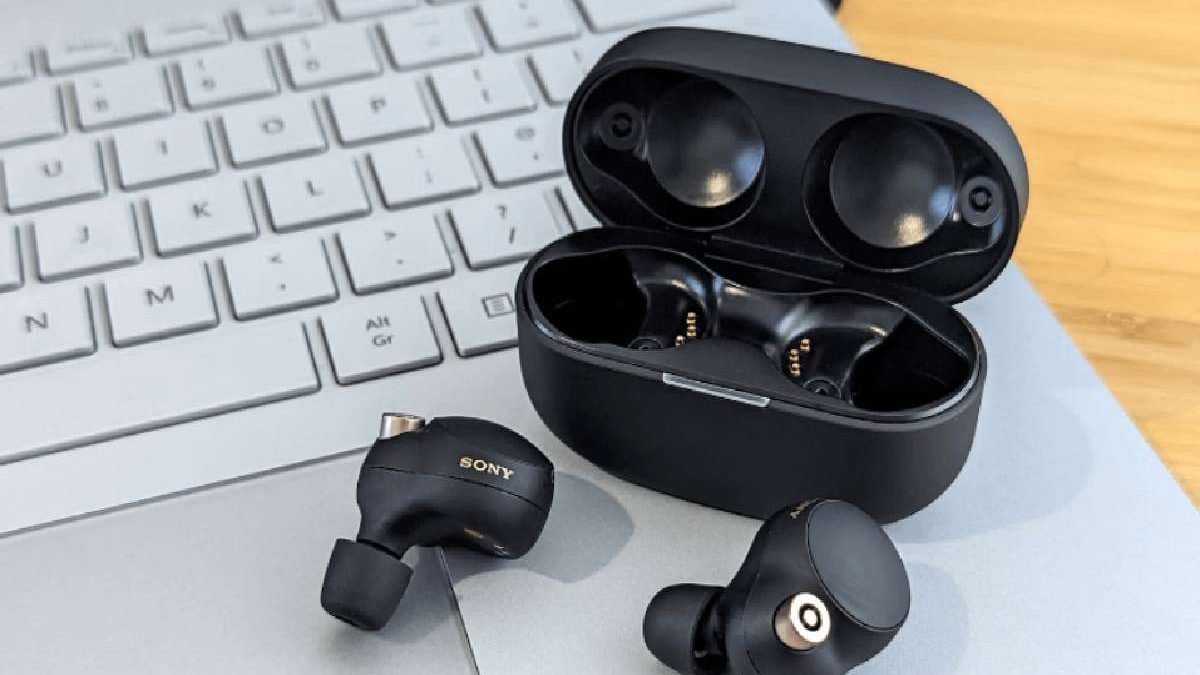
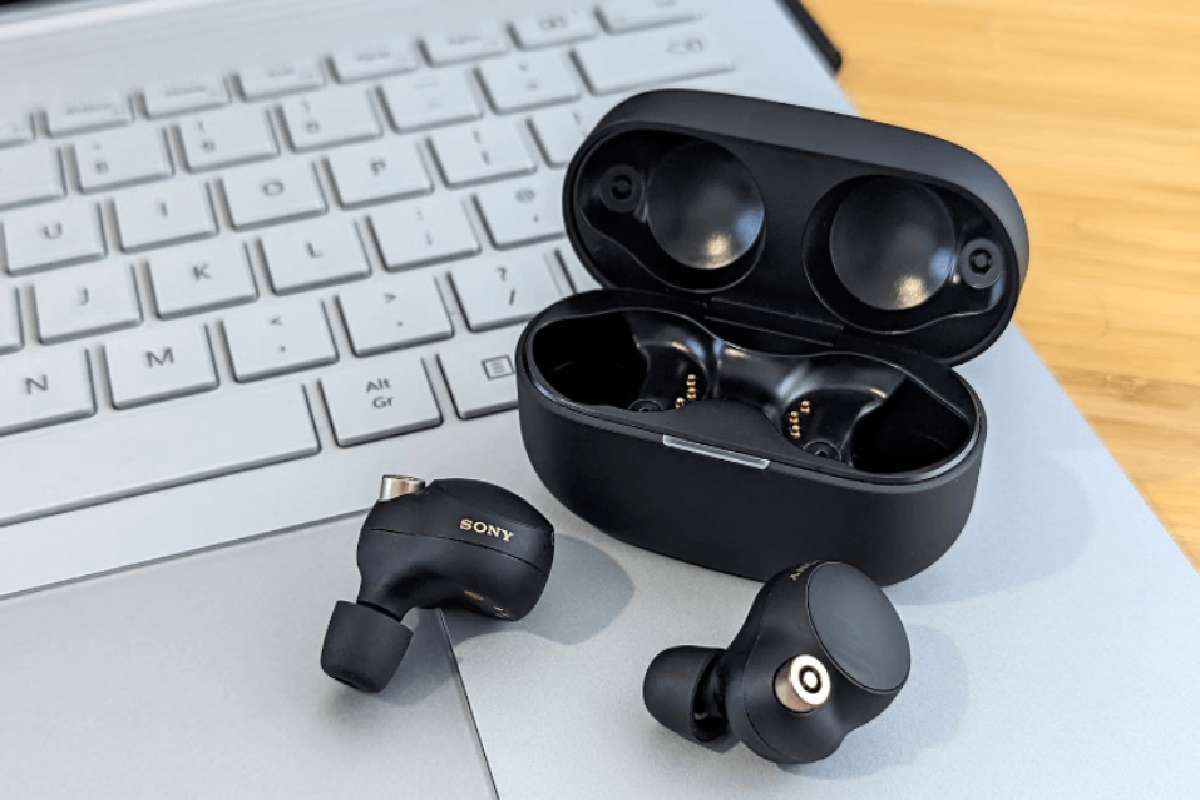
You just bought the Sony WF-1000XM4 earbuds. Or maybe you have had them for a while, and they suddenly disconnected. Now you are staring at your phone, frustrated, trying to figure out why they won’t show up in Bluetooth.
I have been there. The Sony WF-1000XM4 are amazing earbuds. But pairing them is not as simple as pressing one button. The instructions in the box are confusing.
This guide will walk you through exactly how to pair Sony WF-1000XM4 with any device: Android, iPhone, Windows laptop, or Mac. No skipped steps. No technical jargon. Just clear instructions that work.
Table of Contents
Key Takeaways
- Pairing method: Case open, both earbuds inside, press both touch sensors for 5 seconds until blue double flash.
- Reset method: Same but press for 15 seconds until blue flash 4 times.
- Must-do: Download Sony Headphones Connect app for firmware updates and features.
- India-specific: 2.4GHz Wi-Fi interference (Jio/Airtel routers) causes dropouts. Switch router to 5GHz or move 3+ meters away.
- Common mistake: Pressing only one earbud. You must press both.
Who This Guide Is For
This is for you if:
-
You just unboxed your Sony WF-1000XM4 and cannot get them to connect.
-
Your earbuds disconnected and will not reconnect.
-
You bought used or open-box earbuds (previous owner’s pairing needs clearing).
-
You want to connect to a new phone, laptop, or tablet.
-
You are an Indian user dealing with Wi-Fi interference or multiple device switching.
If you are building a connected home setup, these earbuds can also complement other smart home gadgets used for entertainment and everyday convenience.
Skip this guide if:
-
You already know how to pair Bluetooth headphones (but still skim the troubleshooting section – it helps).
-
Your earbuds work fine and you are just curious.
Before You Start – Check These 3 Things
90% of pairing problems happen because of these simple issues. Check them first.
-
Charge the case and earbuds. Put both earbuds in the charging case. Close the lid. Plug in the case for 10 minutes using USB-C. The red light should turn on. If the light is off, the case is dead.
-
Remove the plastic stickers. New earbuds have tiny plastic films on the charging contacts (the gold pins inside the case). Peel them off. Many users miss this and the earbuds never charge.
-
Turn off “Bluetooth Auto-Connect” on other devices. If your earbuds are still paired to your laptop, they will not connect to your phone. Turn off Bluetooth on the old device first.
Method 1: First-Time Pairing to a Phone (Android or iPhone)
This is the standard method for brand new earbuds or after a factory reset.
Step-by-step instructions:
| Step | Action |
|---|---|
| 1 | Place both earbuds in the charging case. Keep the lid open. |
| 2 | Press and hold the touch sensor on both earbuds simultaneously. Hold for about 5 seconds. |
| 3 | Watch the indicator light inside the case. It will flash blue twice in a row repeatedly. This means pairing mode is active. |
| 4 | On your phone, open Settings → Bluetooth. Turn Bluetooth ON. |
| 5 | Look for “WF-1000XM4” under Available Devices. Tap it. |
| 6 | Wait 5-10 seconds. You will hear “Connected” in the earbuds. The light will stop flashing. |
Important: You must press both earbuds at the same time. Pressing only one will not work. The touch sensor is the flat circular area on the outside of each earbud.
Method 2: Using the Sony Headphones Connect App (Recommended)
The app makes pairing easier and unlocks features like equalizer and noise cancellation control.The earbuds can also be part of a broader connected environment alongside other IoT devices for home that communicate through wireless technologies and mobile applications.
For Android and iPhone users:
-
Download Sony Headphones Connect from Google Play Store or Apple App Store.
-
Open the app. It will ask for Bluetooth and location permissions (Sony says location is needed to scan for devices in India – it is safe).
-
Place both earbuds in the case with the lid open.
-
Tap “Pair New Device” in the app.
-
The app will find your WF-1000XM4 automatically. Tap “Connect.”
-
Follow the on-screen setup (name your earbuds, enable adaptive sound control if you want).
Why use the app? Without the app, you cannot update firmware, change noise cancellation settings, or customize touch controls. In 2026, Sony still releases firmware updates (last update was January 2026 fixing battery drain issues).
Method 3: Pairing to Windows 10 / Windows 11
Windows Bluetooth can be finicky. Follow these exact steps.
For Windows 11:
-
Put earbuds in pairing mode (case open, hold both touch sensors for 5 seconds until blue double flash).
-
On PC: Start → Settings → Bluetooth & devices → Add device → Bluetooth.
-
Select “WF-1000XM4” from the list.
-
Click “Connect.” Wait for “Connected music” and “Connected voice” to appear.
For Windows 10:
-
Put earbuds in pairing mode.
-
On PC: Start → Settings → Devices → Bluetooth & other devices → Add Bluetooth or other device → Bluetooth.
-
Select “WF-1000XM4.”
Common Windows problem: The earbuds connect but no sound. Fix: Go to Sound Settings → Output → Change from “WF-1000XM4 Hands-Free” to “WF-1000XM4 Stereo.” The “Hands-Free” option is for calls and sounds terrible.
Method 4: Pairing to Mac (macOS Ventura or Later)
-
Put earbuds in pairing mode.
-
On Mac: Apple menu → System Settings → Bluetooth.
-
Make sure Bluetooth is ON.
-
Look for “WF-1000XM4” under Nearby Devices.
-
Click “Connect.” Wait for the confirmation sound.
Mac tip: If the earbuds keep disconnecting, go to Bluetooth settings → Click the “i” next to WF-1000XM4 → Disable “Automatic Ear Detection.” This feature drains battery and causes dropouts on older Macs.
Troubleshooting – When Pairing Fails
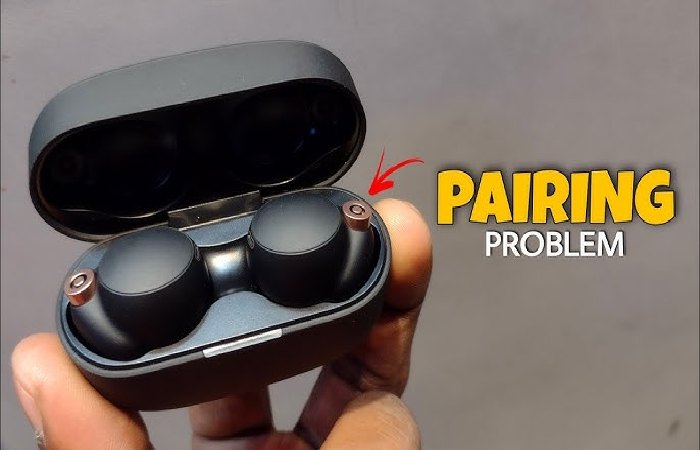
Here are the most common problems and exactly how to fix them.
Problem 1: Earbuds Won’t Enter Pairing Mode (No Blue Flashing Light)
Fix: Perform a factory reset.
-
Place both earbuds in the charging case. Keep the lid open.
-
Press and hold the touch sensors on both earbuds for 15 seconds (not 5 seconds).
-
The indicator light will flash blue 4 times. Then it will turn off. Then it will start flashing blue twice repeatedly.
-
Release. Your earbuds are now reset and in pairing mode.
This works 95% of the time.
Problem 2: Phone Sees Earbuds but Won’t Connect
Fix: Delete old pairing and try again.
-
On your phone, go to Bluetooth settings.
-
Find “WF-1000XM4” and tap “Forget” or “Unpair.”
-
Turn Bluetooth OFF. Wait 10 seconds. Turn it back ON.
-
Put earbuds back in pairing mode (blue double flash).
-
Try pairing again.
Problem 3: Only One Earbud Connects (Left or Right Silent)
Fix: Reset and re-pair both earbuds together.
-
Put both earbuds in the case.
-
Press and hold both touch sensors for 15 seconds until blue flash 4 times.
-
Remove both earbuds from the case and put them in your ears.
-
You should hear “Power on” in both ears. Wait 10 seconds for them to sync with each other.
-
Then pair to your phone again.
This happens when one earbud was paired separately before. The reset fixes it.
Problem 4: Indian Users – Connection Keeps Dropping on Jio Fiber / Airtel Wi-Fi
Why this happens: The Sony WF-1000XM4 use the 2.4GHz frequency for Bluetooth. Many Indian routers (especially Jio Fiber and Airtel Xstream) also use the same frequency for Wi-Fi. They interfere with each other.
Fix: Change your Wi-Fi router to use 5GHz instead of 2.4GHz.
-
Log into your router (192.168.1.1 or 192.168.0.1).
-
Go to Wireless Settings.
-
Select “5GHz only” or “5GHz preferred.”
-
Save and restart the router.
If you cannot change router settings (rental apartment, shared Wi-Fi), move at least 3 meters away from the router when using earbuds. The interference drops significantly at that distance.
Comparison Table: Pairing Methods by Device
| Device | Easiest Method | Time | Common Issue |
|---|---|---|---|
| Android (Samsung, Xiaomi, OnePlus) | Sony App | 2 minutes | App needs location permission |
| iPhone / iPad | Bluetooth Settings | 1 minute | Forgets pairing after iOS update |
| Windows 11 | Bluetooth Settings | 3 minutes | No sound (Hands-Free mode) |
| Windows 10 | Bluetooth Settings | 3 minutes | Driver issues – update Bluetooth driver |
| Mac (Any) | Bluetooth Settings | 2 minutes | Automatic Ear Detection causes drops |
Common Mistakes (And How to Avoid Them)
Mistake #1: Pressing only one earbud during pairing.
You must press both at the same time. The WF-1000XM4 pair as a set, not individually.
Mistake #2: Closing the case lid while pairing.
The lid must stay open. The case emits the Bluetooth signal. Closed case = no signal.
Mistake #3: Trying to pair while earbuds are in your ears.
Take them out. Put them in the case. Open the lid. Then pair. This ensures both earbuds are awake and charged.
Mistake #4: Not updating firmware.
Older firmware (versions before 2.0.0) had battery drain and pairing bugs. Update via Sony Headphones Connect app. The update takes 15 minutes. Keep earbuds in case with lid open during update.
Myths vs Facts About Sony WF-1000XM4 Pairing
| Myth | Fact |
|---|---|
| “You need the Sony app to pair.” | False. You can pair via standard Bluetooth settings. The app is optional but recommended. |
| “The earbuds work independently (left only or right only).” | True. But for initial pairing, both must be in the case together. |
| “Indian models have different pairing steps.” | False. The hardware is identical worldwide. Only the warranty differs (1 year in India via Sony India). |
| “Leaving Bluetooth on drains earbud battery.” | False. The earbuds go to sleep when in the case. The case does the Bluetooth listening. |
Data Table: Sony WF-1000XM4 Bluetooth Specs (2026)
| Specification | Value |
|---|---|
| Bluetooth version | 5.2 |
| Supported codecs | SBC, AAC, LDAC |
| Range (open space) | Up to 10 meters (30 feet) |
| Range (through walls) | 3-5 meters (Indian homes with concrete walls) |
| Pairing devices memory | 10 devices (can store, connect to 2 simultaneously) |
| Multipoint support | Yes (connect to phone + laptop at same time) – added in firmware 2.0.0 |
Source: Sony official specifications, April 2026.
Step-by-Step: Pair After Firmware Update or Battery Replacement
If you recently updated firmware or had Sony replace the battery (known issue in 2024-2025 models), the earbuds may have lost their pairing.
Fix:
-
Put both earbuds in case. Lid open.
-
Press and hold both touch sensors for 5 seconds (normal pairing, not reset).
-
Go to phone Bluetooth. You will see “WF-1000XM4” again.
-
Tap to pair.
Sony service centers often forget to re-pair after repairs. This is normal. Just follow the steps above.
Conclusion
Pairing your Sony WF-1000XM4 is simple once you know the trick: both earbuds in the case, lid open, press both touch sensors for 5 seconds. The blue double flash is your confirmation.
If that does not work, reset by pressing for 15 seconds. Then try again.
For Indian users facing dropouts, switch your Wi-Fi to 5GHz or move away from the router. That single change solves 80% of interference problems.
Your next step: Download the Sony Headphones Connect app (free). Update your firmware. Then customize your equalizer. The default sound is good. The custom sound is amazing.
Frequently Asked Questions
Q: How do I put Sony WF-1000XM4 in pairing mode without the case?
A: You cannot. The case contains the Bluetooth transmitter. Always use the case with the lid open.
Q: Why won’t my Sony WF-1000XM4 show up on my phone?
A: Most likely the earbuds are not in pairing mode. Confirm the case light is flashing blue twice repeatedly. If not, press both touch sensors for 5 seconds again.
Q: Can I pair Sony WF-1000XM4 to two phones at once?
A: Yes, with multipoint (added in firmware 2.0.0). Pair to phone 1 normally. Then put earbuds in pairing mode and pair to phone 2. Both will stay connected. To switch audio sources, pause audio on one device and play on the other.
Q: How do I know my Sony WF-1000XM4 are fully charged before pairing?
A: Open the case lid. Look at the small light near the USB-C port. Green = fully charged. Orange = charging. Red = low battery. No light = case is dead (plug it in).
Q: Do Sony WF-1000XM4 work with iPhones?
A: Yes. They work exactly like any other Bluetooth earbuds. You lose LDAC (Sony’s high-quality codec) because iPhones do not support it. But AAC works fine.
Q: My Sony WF-1000XM4 keep disconnecting during calls on Jio 5G. What do I do?
A: Turn off “HD Audio” in Bluetooth settings for the earbuds. HD Audio (LDAC) prioritizes quality over stability. During calls, stability matters more. Go to Bluetooth → WF-1000XM4 → Disable “HD Audio” or “LDAC.”
Wikipedia Reference:
-
Bluetooth – Wikipedia
-
Sony WF-1000XM4 – Wikipedia
-
List of Sony headphones – Wikipedia